Follow on FaceBook

Friday, 19 December 2014

Posted by Unknown On 18:11 0 comments

NEW VIRUS IN ANDROID PHONE CAN STEAL PASSWORDS

According to TOI (Times of India) Cyber security has alerted about the infectious Trojan virus which attacks Android-based smart phone users. This virus is named as “AndroidSmssend” and it can acquire as many as four aliases to hoodwink the user and perpetrate its destructive activities on a personal Android enabled phone.
Android/SmsSend is a premium service abuser family malware that arrives bundled with legitimate Android applications and infects Android based smartphones.
“Once infected, it sends text messages (typically with a link to itself or a different threat) to a specific number, typically to numbers on the contact list and is also capable to send SMS to premium rate numbers,” the Computer Emergency Response Team of India (CERT-In) said in its latest advisory to Android phone users in the country.
The virus is so notorious, the agency said, that it “steals contacts and pictures, tracks the location, steals passwords, illegally accesses text messages, crashes a complete system, steals personal banking information when logged in, installs other sort of spyware and disables firewall and anti-virus program to defend itself.”

The agency has suggested some counter-measures in this regard.
“Do not download and install applications from untrusted sources, install applications downloaded from reputed application market only, run a full system scan on device with mobile security solution or mobile anti-virus solution, check for the permissions required by an application before installing, exercise caution while visiting trusted/untrusted sites for clicking links, install Android updates and patches and use device encryption or encrypting external SD card feature available with most of the android OS (operating system),” it said.
And also, avoid using unsecured, unknown Wi-Fi networks and make a practice of taking regular backup of the Android device, the advisory said.
 

Thursday, 18 December 2014

Posted by Unknown On 19:52 0 comments

MAKE YOUR COMPUTER WORK FASTER IN 10 EASY STEPS

We all know that sinking feeling when your computer decides to slow down and barely function for no real reason.
Why is my computer so slow?  There are several reasons why your computer might not be running at it’s optimal speed. Let’s start with what you’ve got running in the background…have a quick look, how many applications do you have open, how many internet windows do you have open? Now, are all of them really necessary? If the answer is no to any of them close them, don’t just x out the window, exit out of the software. Obviously that’s not going to fix the issue completely, but there are it’s a start. The good news is there are a even more easy things you can do to keep your computer healthy and happy, and running at top speed.
Here are just a few tips on how to get it back up to speed
  1. Uninstall unused programs
  2. Automatically delete temporary files
  3. Additional storage
  4. Update your software
  5. Delete files you don’t need.
  6. Remove gadgets you don’t use
  7. Run a Disk Cleanup.
  8. Run a Disk Defragment.
  9. Check for any disk errors
  10. Use anti Virus Software
Uninstall unused programs
Similar to the way temporary files can clog up the speed of your computer, unused programs can as well. Be honest with yourself, when was the last time you used iBooks or Keynote? In fact, there are probably a slew of programs on your computer that you aren’t even aware of! If you don’t use it, get rid of it. To remove these programs, access the ‘Control Panel>Programs and Features’, scroll through until you come to a software application you no longer require, typically each application should sit next to it’s uninstall icon. Click on it and follow the instructions to remove that piece of software from your computer.
Automatically delete temporary files
Temporary files are collected and housed on your hard disk. When you get a build up of these, they can slow your computer down quite dramatically. Just think about how every click, every web page you visit all add up, and what that means for the number of temporary files you’re asking your computer to store. These are easily cleared by going to your ‘Hard Drive’ or ‘My Computer’ and access the ‘Temp’ folder. Anything that’s older than today’s date is safe to delete from the ‘Temp’ folder. Make sure you empty your ‘Recycle Bin’ afterwards as well
Additional storage
Check on your hard drive and it’s storage capacity every once in a while, if becomes 85% full, your computer’s speed will be affected for the worst. If you use your computer often for large files, such as downloading movies etc, you might want to consider purchasing an additional hard drive for storage.
Update your software
Do you ignore the alert telling you to update iTunes and Microsoft Office? You shouldn’t! These updates offer improvements to the current version of software you are operating. The new available updates may fix your problem, so always ensure you update when given the chance.   Follow these tips and you should get at least 60-100% more of your computer’s speed back!
 Delete files you don’t need.
Unless you have very little storage space on your computer or simply have an abundance of unnecessary documents, deleting small files won’t make much of an impact on your computer’s overall function. However, any large files like movies you never watch, photos you don’t need, or songs you never listen to can really gum up the works and should definitely be removed.
  • Don’t forget to empty your trash bin.

Remove gadgets you don’t use
All gadgets that are running slow down your computer.
Run a Disk Cleanup.
This can clean up hundreds of megabytes of temporary files – sometimes even gigabytes (if you have Windows XP, Vista, or 7). It will also open a window in which you can chose what to delete. Go to My Computer, right-click the Hard Drive and select Properties, and then click Disc Cleanup (within the General tab). Check all the boxes except for the game files and setup files.
Run a Disk Defragment.
This will reconfigure the way the hard drive stores information for maximum efficiency. Go to My Computer, right-click the Hard Driveand select Properties, then go to the Tools tab and click Defragment Now.
Check for any disk errors
These will also slow your computer down. Go to My Computer, right-click the Hard Drive and select Properties, then go to the Toolstab and click Check Now under the Error-Checking area. When the dialogue box opens, check both boxes.
  • If you get a window saying that Windows can’t check the disk while it’s in use, click on Schedule Disk Check and then OK. It will run on your next reboot.

Use anti virus software
Use anti virus software to prevent you from virus attack. This will help you from making you computer run fast . I strongly recommend you to use Avast anti virus software Its the best software for antivirus

Posted by Unknown On 19:41 0 comments

REMOTE SCREEN SHARING AND CONROLING IN WINDOWS WITHOUT ANY SOFTWARE!!

Remote sharing is nowadays on its peak, people use remote sharing to provide live support or for sharing screens. Most of us always use third party software’s for sharing or controlling remote systems using software’s like Teamviewer or Radmin etc.  Today i am going to teach you guys how to connect any two or as many as windows PC through remote without using any third party tool like team viewer etc. So lets learn how to share screens without any third party tool.As we all knows Windows OS is  full of hidden programs that are only limited to developer or geeks. Today we are going to learn about MSRA (windows remote assistance) executable. MSRA is windows inbuilt remote assistance program using which you can control remote pc’s, share remote screens, provide remote support and much more. Lets learn how to use MSRA for remote sharing.

Steps to Share or Control Remote PC using MSRA:

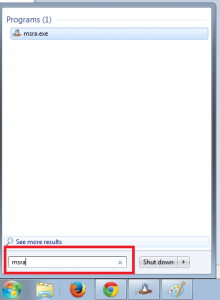
1. First of all click on startup and type command “MSRA” and press enter as shown below:


Type msra in search option

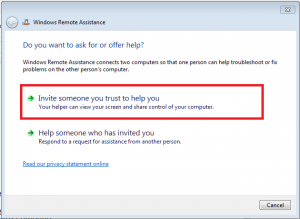
2. Now you will see screen like below having title “Windows Remote Assistance” , there are two options displayed:
  • Invite someone you trust to help you : Choose this option if you want to share your screen with someone.
  • Help someone who invited you : Choose this option if you want to control someone others PC remotely.

Click on Option a “Invite someone you trust to help you” to share your screen:

invite someone to provide remote assistance
Select shown option to continue

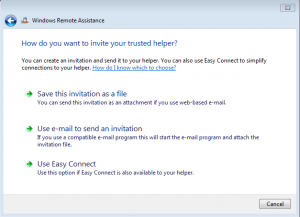
Once you click the above option then you will see below panel with multiple options:


Options displayed for Windows remote assistance

Now you can see three different options :
  • Send this invitation as file : On clicking this option you can save the invitation file and send it to anyone from which you require help. After saving the file another window will open containing the password. You have to provide that password to person whom you want to connect to your machine.
  • Use email to send an invitation: You can send invitation directly via email but it requires email client on your machine to send email like outlook etc.
  • Use Easy connect: Another method to directly connect two PC is using Easy connect but this require some basic settings at your routers end i.e. If the computer has IPv6 disabled or is behind a NAT router that blocks Teredo traffic, the Easy Connect option will be unavailable.

Now once you have send the  remote assistance invitation file to user, he can connect to your PC by double clicking the invitation file and then entering the password.

Note: You need to enable remote assistance service.

3. Help someone who invited you : By clicking this option you can provide help to anyone who has done the above task. You will need two things : Invitation file and password to connect remote PC.


Woohooo… Did you know there is another smart option by which you can directly connect to any PC using IP address? If not, well lets learn that too. Yup we can also provide windows remote assistance support using IP address too. Here are options.

1. First of all click on startup and type command “MSRA” and press enter.
2. Now you will see screen where two options are displayed, Select “Help someone who invited you”.
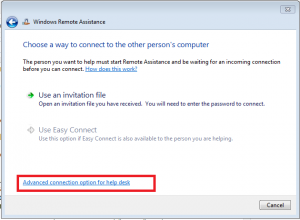
3. After that you will see some option, click on the bottom one “Advanced connection option for help desk” as shown below :


Select advanced connection option for help desk
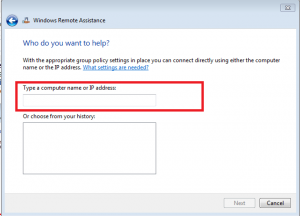
After clicking option you see below panel to enter IP address:


Enter IP address or computer name
 
After entering IP address press Next to connect to IP address. That’s all.
Hope you all enjoyed the learning. If you have any queries ask me in form of comments.

Saturday, 6 December 2014

Posted by Unknown On 21:03 0 comments

HOW TO CREATE A PASSWORD PROTECTED FOLDER WITHOUT ANY EXTRA SOFTWARE

image
There are a lot of methods that you can use to create a password protected folder, most of which require the use of some third party software. Using this neat method you can hide your folders with a quick batch script.
It’s important to note that this will not actually conceal your data from somebody who knows what they are doing.
Note: if you are a beginner you should be careful with this script.


Create Your Password Protected Folder

Before you get started you need to create a folder that will house your password protected folder, this is just an ordinary folder and can be located anywhere and named anything.
image
Navigate into your newly created folder and create a new Text Document. This can easily be done from the context menu.
image
Open the document, now paste the following code into the contents of the document:
cls 
@ECHO OFF 
title Folder Private 
if EXIST "HTG Locker" goto UNLOCK 
if NOT EXIST Private goto MDLOCKER 
:CONFIRM 
echo Are you sure you want to lock the folder(Y/N) 
set/p "cho=>" 
if %cho%==Y goto LOCK 
if %cho%==y goto LOCK 
if %cho%==n goto END 
if %cho%==N goto END 
echo Invalid choice. 
goto CONFIRM 
:LOCK 
ren Private "HTG Locker" 
attrib +h +s "HTG Locker" 
echo Folder locked 
goto End 
:UNLOCK 
echo Enter password to unlock folder 
set/p "pass=>" 
if NOT %pass%== PASSWORD_GOES_HERE goto FAIL 
attrib -h -s "HTG Locker" 
ren "HTG Locker" Private 
echo Folder Unlocked successfully 
goto End 
:FAIL 
echo Invalid password 
goto end 
:MDLOCKER 
md Private 
echo Private created successfully 
goto End 
:End
Change the PASSWORD_GOES_HERE text to the password you want to set. Now go ahead and save the file as locker.bat.
image
Once the file is saved as a batch file you can delete the original text file.
image
Now run your batch file by double clicking on it–the first time you run it, it will create a folder called Private. This is where you can store all your secret things. When you have finished adding all your stuff to the Private folder, run locker.bat again.
image
This time you will be asked if you sure that you want to lock the folder, press the “Y” key and hit enter to lock your folder.
image
You will see that your Private folder quickly disappears.
image
If you run the script yet again, you will prompted for a password.
image
If you enter the same password as you set in the script the Private folder will reappear if you enter the incorrect password the script will just Terminate.

How to See the Files Again

Most people don’t know how to show system files, but anybody who has some experience will probably be able to quickly figure it out in the Folder Options. To see the files again, all you have to do is uncheck the boxes for “Show hidden files, folders, and drives” and uncheck the box for “Hide protected operating system files”.
But any ordinary user who unchecks the box will most probably be scared off by the warning message that appears.
The second way someone could comprise the folder is to open the batch file and read your password. It’s definitely not a really secure way to hide your files, but it is fun.
Attribution note: We found this script on dozens of different web sites going back many years. We have no idea who first created the script, so we’ve omitted any sort of attribution link. If you do have proof that you first created the script, contact us and we’ll adjust the article accordingly.

If You Forget Your Password

Seems like once a week somebody writes in asking how to figure out the password they set. And the answer is really simple: Right-click on the locker.bat file and choose Edit.
Then you can see the password you set in the file.

Thursday, 4 December 2014

Posted by Unknown On 21:19 0 comments

5 STEPS WIFI HACKING - CRAKING WPA2 PASSWORD...

Today we will learn about 5 Steps Wifi Hacking – Cracking WPA2 Password. A lot of readers send many request regarding how to crack wireless WPA2 password in our request tutorial page. 

A flaw in a feature added to Wi-Fi, called Wi-Fi Protected Setup (WPS), allows WPA and WPA2 security to be bypassed and effectively broken in many situations. Many access point they have a Wifi Protected Setup enabled by default (even after we hard reset the access point).
Requirements:
1. Wireless card (support promiscuous mode)
In this tutorial I use ALFA AWUS036H from Amazon.
5 Steps Wifi Hacking - Cracking WPA2 Password
2. Access point with WPA2 and WPS enables

5 Steps Wifi Hacking – Cracking WPA2 Password:

1. Open our terminal (CTRL+ALT+T) and type airmon-ng (view tips and tricks how to create keyboard shortcut on kali linux)
5 Steps Wifi Hacking - Cracking WPA2 Password
this command will lists our wireless card that attached with our system.

2. The next step we need to stop our wireless monitor mode by running airmon-ng stop wlan0

5 Steps Wifi Hacking - Cracking WPA2 Password

3. Now we ready to capture the wireless traffic around us. By running airodump-ng wlan0 our wireless interface will start capturing the data.

5 Steps Wifi Hacking - Cracking WPA2 Password

From the picture above, we can see many available access point with all the information. In the green box is our victim access point which is my own access point :-)

Information:
BSSID (Basic Service Set Identification): the MAC address of access point
PWR: Signal level reported by the card.
Beacons: Number of announcements packets sent by the AP
#Data: Number of captured data packets (if WEP, unique IV count), including data broadcast packets.
#/s: Number of data packets per second measure over the last 10 seconds.
CH: Channel number (taken from beacon packets).
MB: Maximum speed supported by the AP. If MB = 11, it's 802.11b, if MB = 22 it's 802.11b+ and higher rates are 802.11g.
ENC: Encryption algorithm in use.
CIPHER: The cipher detected. TKIP is typically used with WPA and CCMP is typically used with WPA2.
AUTH: The authentication protocol used.
ESSID: Shows the wireless network name. The so-called “SSID”, which can be empty if SSID hiding is activated.

4. From the step 3 above, we can find access point with encryption algorithm WPA2 and note the AP channel number. Now we will find out whether target AP has WPS enabled or not.
wash -i wlan0 -c 8 -C -s

5 Steps Wifi Hacking - Cracking WPA2 Password
if the WPS Locked status is No, then we ready to crack and move to step 5.

5. The last step is cracking the WPA2 password using reaver.
reaver -i <your_interface> -b <wi-fi victim MAC address> –fail-wait=360
Because we already get the information from step 3 above, so my command look like this:
reaver -i wlan0 -b E0:05:C5:5A:26:94 –fail-wait=360

5 Steps Wifi Hacking - Cracking WPA2 Password
it took about 5 hours to crack 19 characters WPA2 password (vishnuvalentino.com) from my Kali virtualBox, but it depend with our hardware and wireless card.

Conclusions:
1. WPA and WPA2 security implemented without using the Wi-Fi Protected Setup (WPS) feature are unaffected by the security vulnerability.
2. To prevent this attack, just turn off our WPS/QSS feature on our access point. See picture below (I only have the Chinese version :-P )
5 Steps Wifi Hacking - Cracking WPA2 Password
Notes: Only practice this tutorial on your own lab and your own device. Hacking can be a crime if you don't know where to put it.

Saturday, 29 November 2014

Posted by Unknown On 20:30 0 comments

HOW TO USE ANYONE’S FACE AS A FACEBOOK CHAT EMOTICONS (SMILE’S)

Facebook Emoticons are no longer have to be simple like anonymous smiley faces. Facebook Chat now lets you use the profile picture of any user, official Page, or event on the service as an emoticon. That means you can make one out of your best friend, Celebrity, official Page or anything else.This will let you create wide range of your emotions.

STEPS TO FOLLOW:

  • Go to any profile, official Page, or event that you want to use as an emoticons.
  • Look at the URL. Find the username or profile ID at the end of the URL such as ‘boniface.david.12’ from https://www.facebook.com/boniface.david.12
  • Place that name  in double brackets like [[Boniface.David.12]]
  • Enter that into a Facebook Chat.
  • When you send it, the bracketed  letters will appear as that person, Page, or event’s current profile picture.
The emoticons has evolved!
You can send these custom emoticons from the web or mobile, but they’ll only display as photos on the web. When viewed through a Facebook app or mobile site they appear as their bracketed string. Similarly, you can’t use them in status updates, wall posts, or comments yet. They appear pretty small, but you can hover over the photos to view the user name it belongs too.

Here’s a few ideas of people and Pages of Musicians you could use as emoticons. Just copy the bracketed text at the end and send in Facebook Chat.
  • Eminem – [[eminem]]
  • Lilwayne – [[LilWayne]]
  • JustinBieber – [[JustinBieber]]
  • Rihana – [[rihanna]]
  • Britneyspears – [[britneyspears]]
  • Justintimberlake – [[justintimberlake]]
  • Enrique Iglesias – [[Enrique]]
  • Nickiminaj – [[nickiminaj]]

Monday, 24 November 2014

Posted by Unknown On 00:00 0 comments

HOW TO USE SMARTPHONE AS WEBCAM

Many would doubt the concept as of why one would prefer using his phone as a webcam? Well, there are a bunch of reasons to push this idea:
• Old phone having no front cam? You could use rear camera for video calling instead of buying one.
• A good chance that it can stand for a pretty good “Security camera”, monitoring your babies or other watch hours, without buying expensive standalone cameras!
Oh yes, it is a matter of concern that you would buy a new camera for the purpose but still if you want to save those few dollars/rupees, you can stick to this idea. Don’t sell that old one in your pocket, it can still serve you well.
Now the question arise on How-to-do stuff? Isn’t it? Well there are certain right apps that would provide you with satisfying interface and make worth it.
Android:
Android Phone
Play store as well as private developers provide a number of apps for this purpose. But beware of those fake tagline, you could be fooled and end up in wasting worthy data or leak of some personal information.
Out of the most tested, IP Webcam is the best one which proves for this purpose. Unlike DroidCam (which require a similar application to be installed in Windows), this app works through your browser, giving you the compatibility and freedom to move over platforms.
Step-to-do:
  1. Connect you phone and computer to the same Wi-Fi network.
  2. Install the app IP Webcam on your phone.
  3. It is advisable to close any app which uses your phone’s camera (kill’em using task manager).
  4. Launch the app. Scroll down until a tab appears- “Start server”.
  5. The app will now display a URL, something like- http://abc.de.fg.ij:klmn (alphabets represents numerical).
  6. Enter this URL in your web browser and hit Enter.
  7. In the browser, you’ll see a drop down menu next to Video renderer. Select Browser.
  8. Next, you’ll see Audio renderer. Select HTML wav.
Lava Android Phone
Now you’re good to go. You’ll see a live video feed in your browser. You can record it via browser. You’ll get used to controls once you use it.
Although there might be some problem in HTML wav audio streaming, you can prefer VLC media player for this purpose.
Download it from here, install it. Go to Media>Network Stream and enter the URL generated from the app.
Once the app is running, you don’t need to keep the phone’s screen on. It works smoothly even if phone is locked but video feed experience is slightly better when phone’s screen is on.

iOS:

EpocCam and PocketCam rule the app market in race of making your iProduct a better webcam. PocketCam is messy to configure, and gives access to only black n white video, no audio in free version. You can rely on the paid one to get better service.
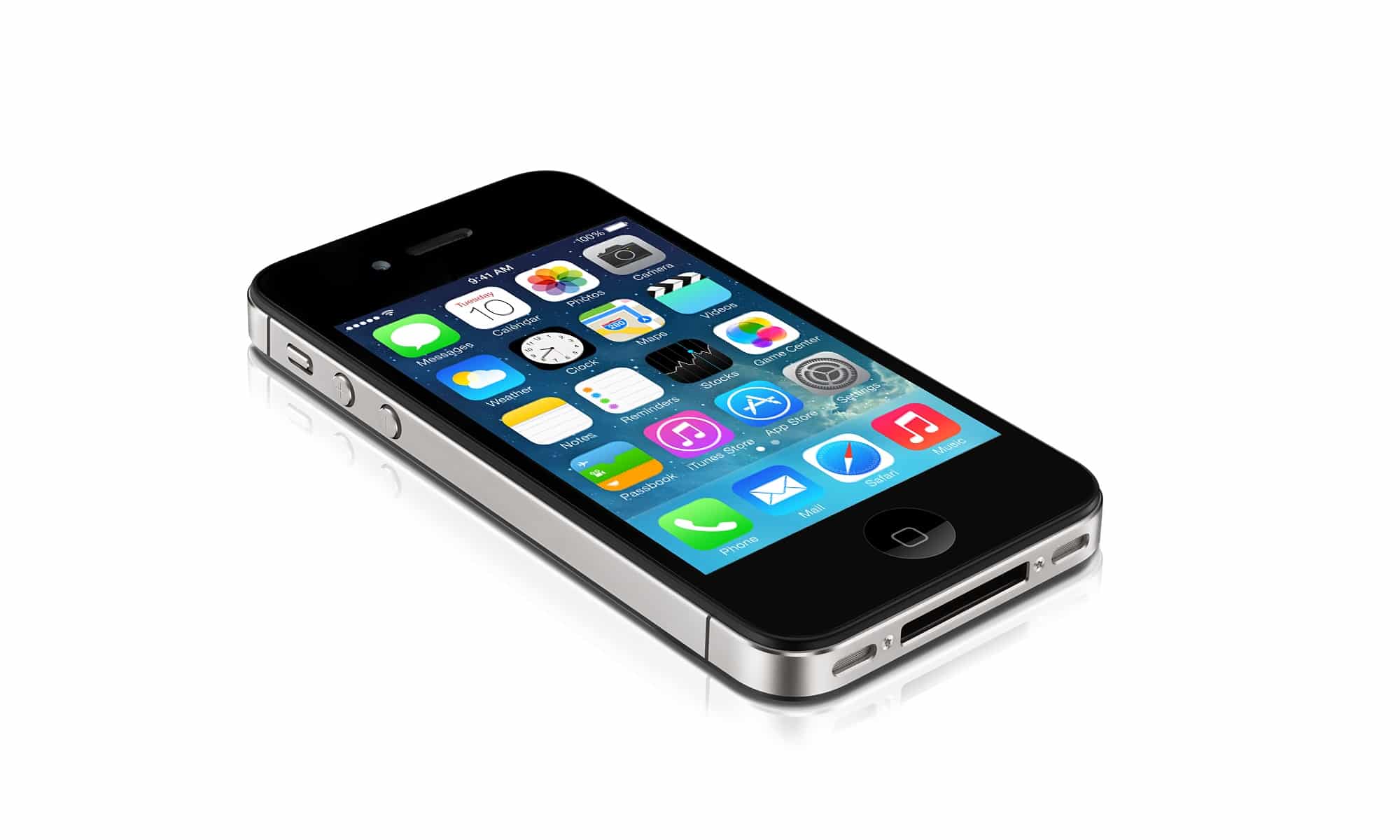
iPhone 4S
EpocCam is free and quite easy to set up too! Here’s how to make it under use:
  1. Download EpocCam on your iDevice as well as for your Mac or PC.
  2. Make sure both the devices are connected on the same network.
  3. While installing, several prompt may appear asking you to install some drivers. Install them, they essential audio and video drivers used by the app.
  4. Start the app on both devices.
  5. The app will automatically searches for the device running EpocCam on the same Wi-Fi network. Soon, the video from your iDevice will be shown up on your computer.
  6. There might be a few occasions when the app won’t connect your device to your computer. In the case, restarting the app quickly fixes the issue. Also, there is no video recording feature in this app, but video recording apps like CamStudio, ScreenPresso, etc. will work for you.

Video Calling- Setting up your phone as a Webcam:

Android:
Disappointing though, IP Webcam doesn’t work with Skype, so you need to stick with DroidCam and its PC Client to work.
DroidCam
Step-to-do:
  1. Install DroidCam on your phone, as well as on your computer. (As DroidCam Client, here)
  2. Connect both the devices to the same network.
  3. Open the app on the phone and write down the Wi-Fi IP listed on the main screen.
  4. Open the Windows client and paste the IP on your computer.
  5. If you have slow internet connection, select low from the video quality drop down menu.
  6. Click Start.
  7. Now you’ll see video feed from your phone on the DroidCam Windows application.
  8. Better to keep your phone unlocked, to avoid minimal stutter and lag. Keep android app open and turn off auto-lock.
  9. Restart Skype (if it is already opened) and select DroidCamSource1 as webcam.
    Good to go again. Use your phone as the webcam.

iOS:

The procedure is simple. EpocCam enables you to connect to Skype and use your iDevice as Webcam.
Steps-to-do:
  1. Install app on both devices, as mentioned earlier.
  2. Start the app, it will connect automatically.
  3. Now, restart Skype and select EpocCam as the webcam.
  4. Now you’ll be using your iDevice as Webcam.
How to set default camera on Skype:
Skype on your PC will require the camera configuration.
Skype
Steps-to-do:
  1. Download and Install desktop version Skype app.
  2. Sign in to your account and enter Tools>Options.
  3. Click video setting under the general tab.
  4. Select the correct camera from the drop down menu next to Select webcam. The name of the camera will be similar to the name of the app
  5. you are using. Select it.
  6. Click save.
You can now place video calls from your computer using your phone as a webcam!
Note for iPhone, iPad users: The app stops working if you hit the home button or lock your phone.