Follow on FaceBook

Recent Posts

Monday, 2 February 2015

Posted by Unknown On 11:48 0 comments

HOW TO SHARE FILES BETWEEN YOUR PC AND ANDROID MOBILE OVER WI-FI

When it comes to transferring files from your android device to computer or other mobile devicethe most commonly used medium is Bluetooth or a USB cable. But what if the mobile’s usb port is damaged and Bluetooth transfer speed is too slow?.
Sharing files between your pc and mobile with WiFi is another method, and there are many apps available  for this task, after reviewing some apps I found two great ones as discussed below.

AIRDROID

Airdroid is one of the highest rated apps in the market that lets you manage and control your Android devices (phones & tablets) from a desk web browser. The app can be both used to receive and send files wirelessly between your PC and Android device.
Airdroid also lets you easily interact with content on your device. It links to your contacts and messages, meaning you can send an SMS or acquire contact information without physically accessing your phone.
Apart from that, you can also view media files on your device like photos, musics and videos, which will all stream over Wi-Fi for you to view or edit on your computer.
Now, let’s see how to transfer files to and from your Android device using Airdroid over WiFi.
  1. Turn on your mobile’s hotspot,and connect with that hotspot on PC.
  2. Install and open Airdroid app , now you will see a web  IP address on the app. Note it down as you’ll need that web address to connect your Android device through your computer’s web browser.
  3. Now paste that link to your web browser and accept the connection request on the mobile.
  4. After connecting successfully ,the Airdroid web page will display on your browser.
  1. Now you are ready to share files between pc and mobile, just click on files icon and you can simply upload and download the files with the speed of your WiFi.                          .

EsFILE EXPLORER

Es file explorer is also a very popular file explorer for android mobiles but it can also be used for file transfers over the WiFi .

EsFile explore turns your mobile into  an FTP server and can transfer the file with FTP(file transfer protocol ) transfer .
Now, let’s see how to transfer files from and to your Android device using Es File explorer app over WiFi.
  1. Download and Install Es file explorer and open it.
  2. Connect pc with yours mobiles Hotspot.
  3. Go to option->remote manager and turn it on.
  4. After enabling ftp server you will see unique ftp server link.
  5. Paste it on windows explorer location bar and you can access all files and folder directly from windows explorer.
1
Hope you like the post, if you are facing any problem comment below.

Sunday, 25 January 2015

Posted by Unknown On 04:15 0 comments

WHATSAPP IS NOW AVAILABLE ON THE WEB

Are you WhatsApp? Are you tired of having to type all of your messages through your phone? Guess what, you can type all your messages on your desktop.

On Saturday,  Whatsapp announced the new desktop version – a web app rather that for now works with Google Chrome.


How to Get the Desktop Version:To connect your web browser to your WhatsApp client, simply open https://web.whatsapp.com in your Google Chrome browser.


You will see a QR code (this is necessary, presumably, because WhatsApp uses your phone number and SMS verifications rather than usernames/passwords) — scan the code inside of WhatsApp, and you’re ready to go.
whatsapp
You have now paired WhatsApp on your phone with the WhatsApp web client. Your phone needs to stay connected to the internet for our web client to work, and please make sure to install the latest version of WhatsApp on your phone.

Unfortunately for now, Whatsapp will not be able to provide web client to its iOS users due to Apple platform limitations.
According to TechCrunch, the web app seems as if it’s using your phone for more than just the initial login. If your phone dies, so does your WhatsApp web connection as seen below (note the orange line.)

screenshot

Saturday, 17 January 2015

Posted by Unknown On 00:41 0 comments

TIPS TO STAY SAFE ON THE INTERNET

Within the modern digital era that we live in today, we are constantly connected to the Internet either through a desktop PC, laptop, tablet or mobile phone.It has become easier than ever for government authorities, businesses and also hackers to track your movements online. An example is the use of tracking cookies by social media giant Facebook, which trace your IP address and Internet history in order to tailor the ads to you specifically. Here is an example of the kind of data that is collected:
anon_privacynet-100401693-orig

We will show you the methods and techniques to browse the Internet care free, for peace of mind.

The best way to surf the web is anonymously using something called a proxy. When using a proxy your web browser doesn’t contact the website directly it goes through a proxy first masking your IP address. There are several methods to achieve this, you can configure your web browser to do so or use alternative software. First of all we will show you how to configure your web browser:

For Firefox:
1: Open Mozilla Firefox
imageedit_1_5724747091

2: Click Firefox tab
imageedit_3_6178206186

3:Click Options

imageedit_10_8098497994
4: Access Connection Settings. Click the Advanced tab, then the Network tab, then Settings
imageedit_12_4916609242
5: Chose the manual proxy configuration option. In the HTTP proxy field, enter your proxy server IP address. In the port field, enter your port number.
imageedit_12_4916609242
imageedit_14_7751315586
6:Click Ok to complete

Within Internet explorer the technique is a little different:

1: Open up Internet Explorer
imageedit_16_5490733917
2: Click on the Tools menu in the upper-right corner, and select Internet Options.
imageedit_18_4424017369
3:Click connections
imageedit_22_2128181248
4:Click Lan settings
imageedit_24_3419309567
5: Check “Use a proxy server for your LAN,” then enter your proxy IP address and port number.
imageedit_26_3522541306
6: Click Ok
Finally below is the technique within Google Chrome.
1: Open Google Chrome
imageedit_28_9148726213
2:Click on the options menu on the top right hand side
imageedit_30_8581758487

3: Click on settings
imageedit_32_7985489081

4: Click “Show advanced settings at the bottom of the drop down menu
imageedit_34_5625592932

5: Then click change proxy settings
imageedit_36_8135318398

6: Click Lan Settings, click on the Proxy server for your LAN” and enter your proxy settings.

google-chrome-proxy-settings

Step 7 click ok and save your new settings.

You can also use third party proxies, there a large list of them available on the Internet to choose from.  Simply search for proxies on your desired search engine.

Friday, 19 December 2014

Posted by Unknown On 18:11 0 comments

NEW VIRUS IN ANDROID PHONE CAN STEAL PASSWORDS

According to TOI (Times of India) Cyber security has alerted about the infectious Trojan virus which attacks Android-based smart phone users. This virus is named as “AndroidSmssend” and it can acquire as many as four aliases to hoodwink the user and perpetrate its destructive activities on a personal Android enabled phone.
Android/SmsSend is a premium service abuser family malware that arrives bundled with legitimate Android applications and infects Android based smartphones.
“Once infected, it sends text messages (typically with a link to itself or a different threat) to a specific number, typically to numbers on the contact list and is also capable to send SMS to premium rate numbers,” the Computer Emergency Response Team of India (CERT-In) said in its latest advisory to Android phone users in the country.
The virus is so notorious, the agency said, that it “steals contacts and pictures, tracks the location, steals passwords, illegally accesses text messages, crashes a complete system, steals personal banking information when logged in, installs other sort of spyware and disables firewall and anti-virus program to defend itself.”

The agency has suggested some counter-measures in this regard.
“Do not download and install applications from untrusted sources, install applications downloaded from reputed application market only, run a full system scan on device with mobile security solution or mobile anti-virus solution, check for the permissions required by an application before installing, exercise caution while visiting trusted/untrusted sites for clicking links, install Android updates and patches and use device encryption or encrypting external SD card feature available with most of the android OS (operating system),” it said.
And also, avoid using unsecured, unknown Wi-Fi networks and make a practice of taking regular backup of the Android device, the advisory said.
 

Thursday, 18 December 2014

Posted by Unknown On 19:52 0 comments

MAKE YOUR COMPUTER WORK FASTER IN 10 EASY STEPS

We all know that sinking feeling when your computer decides to slow down and barely function for no real reason.
Why is my computer so slow?  There are several reasons why your computer might not be running at it’s optimal speed. Let’s start with what you’ve got running in the background…have a quick look, how many applications do you have open, how many internet windows do you have open? Now, are all of them really necessary? If the answer is no to any of them close them, don’t just x out the window, exit out of the software. Obviously that’s not going to fix the issue completely, but there are it’s a start. The good news is there are a even more easy things you can do to keep your computer healthy and happy, and running at top speed.
Here are just a few tips on how to get it back up to speed
  1. Uninstall unused programs
  2. Automatically delete temporary files
  3. Additional storage
  4. Update your software
  5. Delete files you don’t need.
  6. Remove gadgets you don’t use
  7. Run a Disk Cleanup.
  8. Run a Disk Defragment.
  9. Check for any disk errors
  10. Use anti Virus Software
Uninstall unused programs
Similar to the way temporary files can clog up the speed of your computer, unused programs can as well. Be honest with yourself, when was the last time you used iBooks or Keynote? In fact, there are probably a slew of programs on your computer that you aren’t even aware of! If you don’t use it, get rid of it. To remove these programs, access the ‘Control Panel>Programs and Features’, scroll through until you come to a software application you no longer require, typically each application should sit next to it’s uninstall icon. Click on it and follow the instructions to remove that piece of software from your computer.
Automatically delete temporary files
Temporary files are collected and housed on your hard disk. When you get a build up of these, they can slow your computer down quite dramatically. Just think about how every click, every web page you visit all add up, and what that means for the number of temporary files you’re asking your computer to store. These are easily cleared by going to your ‘Hard Drive’ or ‘My Computer’ and access the ‘Temp’ folder. Anything that’s older than today’s date is safe to delete from the ‘Temp’ folder. Make sure you empty your ‘Recycle Bin’ afterwards as well
Additional storage
Check on your hard drive and it’s storage capacity every once in a while, if becomes 85% full, your computer’s speed will be affected for the worst. If you use your computer often for large files, such as downloading movies etc, you might want to consider purchasing an additional hard drive for storage.
Update your software
Do you ignore the alert telling you to update iTunes and Microsoft Office? You shouldn’t! These updates offer improvements to the current version of software you are operating. The new available updates may fix your problem, so always ensure you update when given the chance.   Follow these tips and you should get at least 60-100% more of your computer’s speed back!
 Delete files you don’t need.
Unless you have very little storage space on your computer or simply have an abundance of unnecessary documents, deleting small files won’t make much of an impact on your computer’s overall function. However, any large files like movies you never watch, photos you don’t need, or songs you never listen to can really gum up the works and should definitely be removed.
  • Don’t forget to empty your trash bin.

Remove gadgets you don’t use
All gadgets that are running slow down your computer.
Run a Disk Cleanup.
This can clean up hundreds of megabytes of temporary files – sometimes even gigabytes (if you have Windows XP, Vista, or 7). It will also open a window in which you can chose what to delete. Go to My Computer, right-click the Hard Drive and select Properties, and then click Disc Cleanup (within the General tab). Check all the boxes except for the game files and setup files.
Run a Disk Defragment.
This will reconfigure the way the hard drive stores information for maximum efficiency. Go to My Computer, right-click the Hard Driveand select Properties, then go to the Tools tab and click Defragment Now.
Check for any disk errors
These will also slow your computer down. Go to My Computer, right-click the Hard Drive and select Properties, then go to the Toolstab and click Check Now under the Error-Checking area. When the dialogue box opens, check both boxes.
  • If you get a window saying that Windows can’t check the disk while it’s in use, click on Schedule Disk Check and then OK. It will run on your next reboot.

Use anti virus software
Use anti virus software to prevent you from virus attack. This will help you from making you computer run fast . I strongly recommend you to use Avast anti virus software Its the best software for antivirus

Posted by Unknown On 19:41 0 comments

REMOTE SCREEN SHARING AND CONROLING IN WINDOWS WITHOUT ANY SOFTWARE!!

Remote sharing is nowadays on its peak, people use remote sharing to provide live support or for sharing screens. Most of us always use third party software’s for sharing or controlling remote systems using software’s like Teamviewer or Radmin etc.  Today i am going to teach you guys how to connect any two or as many as windows PC through remote without using any third party tool like team viewer etc. So lets learn how to share screens without any third party tool.As we all knows Windows OS is  full of hidden programs that are only limited to developer or geeks. Today we are going to learn about MSRA (windows remote assistance) executable. MSRA is windows inbuilt remote assistance program using which you can control remote pc’s, share remote screens, provide remote support and much more. Lets learn how to use MSRA for remote sharing.

Steps to Share or Control Remote PC using MSRA:

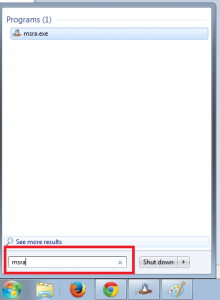
1. First of all click on startup and type command “MSRA” and press enter as shown below:


Type msra in search option

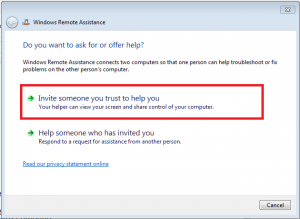
2. Now you will see screen like below having title “Windows Remote Assistance” , there are two options displayed:
  • Invite someone you trust to help you : Choose this option if you want to share your screen with someone.
  • Help someone who invited you : Choose this option if you want to control someone others PC remotely.

Click on Option a “Invite someone you trust to help you” to share your screen:

invite someone to provide remote assistance
Select shown option to continue

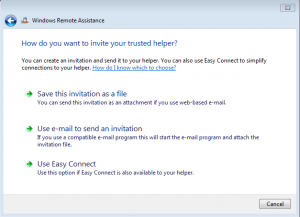
Once you click the above option then you will see below panel with multiple options:


Options displayed for Windows remote assistance

Now you can see three different options :
  • Send this invitation as file : On clicking this option you can save the invitation file and send it to anyone from which you require help. After saving the file another window will open containing the password. You have to provide that password to person whom you want to connect to your machine.
  • Use email to send an invitation: You can send invitation directly via email but it requires email client on your machine to send email like outlook etc.
  • Use Easy connect: Another method to directly connect two PC is using Easy connect but this require some basic settings at your routers end i.e. If the computer has IPv6 disabled or is behind a NAT router that blocks Teredo traffic, the Easy Connect option will be unavailable.

Now once you have send the  remote assistance invitation file to user, he can connect to your PC by double clicking the invitation file and then entering the password.

Note: You need to enable remote assistance service.

3. Help someone who invited you : By clicking this option you can provide help to anyone who has done the above task. You will need two things : Invitation file and password to connect remote PC.


Woohooo… Did you know there is another smart option by which you can directly connect to any PC using IP address? If not, well lets learn that too. Yup we can also provide windows remote assistance support using IP address too. Here are options.

1. First of all click on startup and type command “MSRA” and press enter.
2. Now you will see screen where two options are displayed, Select “Help someone who invited you”.
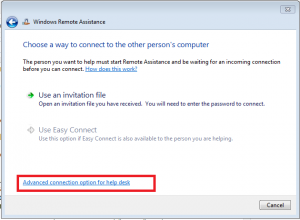
3. After that you will see some option, click on the bottom one “Advanced connection option for help desk” as shown below :


Select advanced connection option for help desk
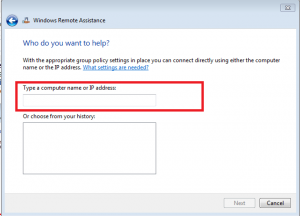
After clicking option you see below panel to enter IP address:


Enter IP address or computer name
 
After entering IP address press Next to connect to IP address. That’s all.
Hope you all enjoyed the learning. If you have any queries ask me in form of comments.

Saturday, 6 December 2014

Posted by Unknown On 21:03 0 comments

HOW TO CREATE A PASSWORD PROTECTED FOLDER WITHOUT ANY EXTRA SOFTWARE

image
There are a lot of methods that you can use to create a password protected folder, most of which require the use of some third party software. Using this neat method you can hide your folders with a quick batch script.
It’s important to note that this will not actually conceal your data from somebody who knows what they are doing.
Note: if you are a beginner you should be careful with this script.


Create Your Password Protected Folder

Before you get started you need to create a folder that will house your password protected folder, this is just an ordinary folder and can be located anywhere and named anything.
image
Navigate into your newly created folder and create a new Text Document. This can easily be done from the context menu.
image
Open the document, now paste the following code into the contents of the document:
cls 
@ECHO OFF 
title Folder Private 
if EXIST "HTG Locker" goto UNLOCK 
if NOT EXIST Private goto MDLOCKER 
:CONFIRM 
echo Are you sure you want to lock the folder(Y/N) 
set/p "cho=>" 
if %cho%==Y goto LOCK 
if %cho%==y goto LOCK 
if %cho%==n goto END 
if %cho%==N goto END 
echo Invalid choice. 
goto CONFIRM 
:LOCK 
ren Private "HTG Locker" 
attrib +h +s "HTG Locker" 
echo Folder locked 
goto End 
:UNLOCK 
echo Enter password to unlock folder 
set/p "pass=>" 
if NOT %pass%== PASSWORD_GOES_HERE goto FAIL 
attrib -h -s "HTG Locker" 
ren "HTG Locker" Private 
echo Folder Unlocked successfully 
goto End 
:FAIL 
echo Invalid password 
goto end 
:MDLOCKER 
md Private 
echo Private created successfully 
goto End 
:End
Change the PASSWORD_GOES_HERE text to the password you want to set. Now go ahead and save the file as locker.bat.
image
Once the file is saved as a batch file you can delete the original text file.
image
Now run your batch file by double clicking on it–the first time you run it, it will create a folder called Private. This is where you can store all your secret things. When you have finished adding all your stuff to the Private folder, run locker.bat again.
image
This time you will be asked if you sure that you want to lock the folder, press the “Y” key and hit enter to lock your folder.
image
You will see that your Private folder quickly disappears.
image
If you run the script yet again, you will prompted for a password.
image
If you enter the same password as you set in the script the Private folder will reappear if you enter the incorrect password the script will just Terminate.

How to See the Files Again

Most people don’t know how to show system files, but anybody who has some experience will probably be able to quickly figure it out in the Folder Options. To see the files again, all you have to do is uncheck the boxes for “Show hidden files, folders, and drives” and uncheck the box for “Hide protected operating system files”.
But any ordinary user who unchecks the box will most probably be scared off by the warning message that appears.
The second way someone could comprise the folder is to open the batch file and read your password. It’s definitely not a really secure way to hide your files, but it is fun.
Attribution note: We found this script on dozens of different web sites going back many years. We have no idea who first created the script, so we’ve omitted any sort of attribution link. If you do have proof that you first created the script, contact us and we’ll adjust the article accordingly.

If You Forget Your Password

Seems like once a week somebody writes in asking how to figure out the password they set. And the answer is really simple: Right-click on the locker.bat file and choose Edit.
Then you can see the password you set in the file.